

Uploading a New Version
Assemble allows you to upload new versions of assets in order to track your progress over time and quickly jump between past versions.
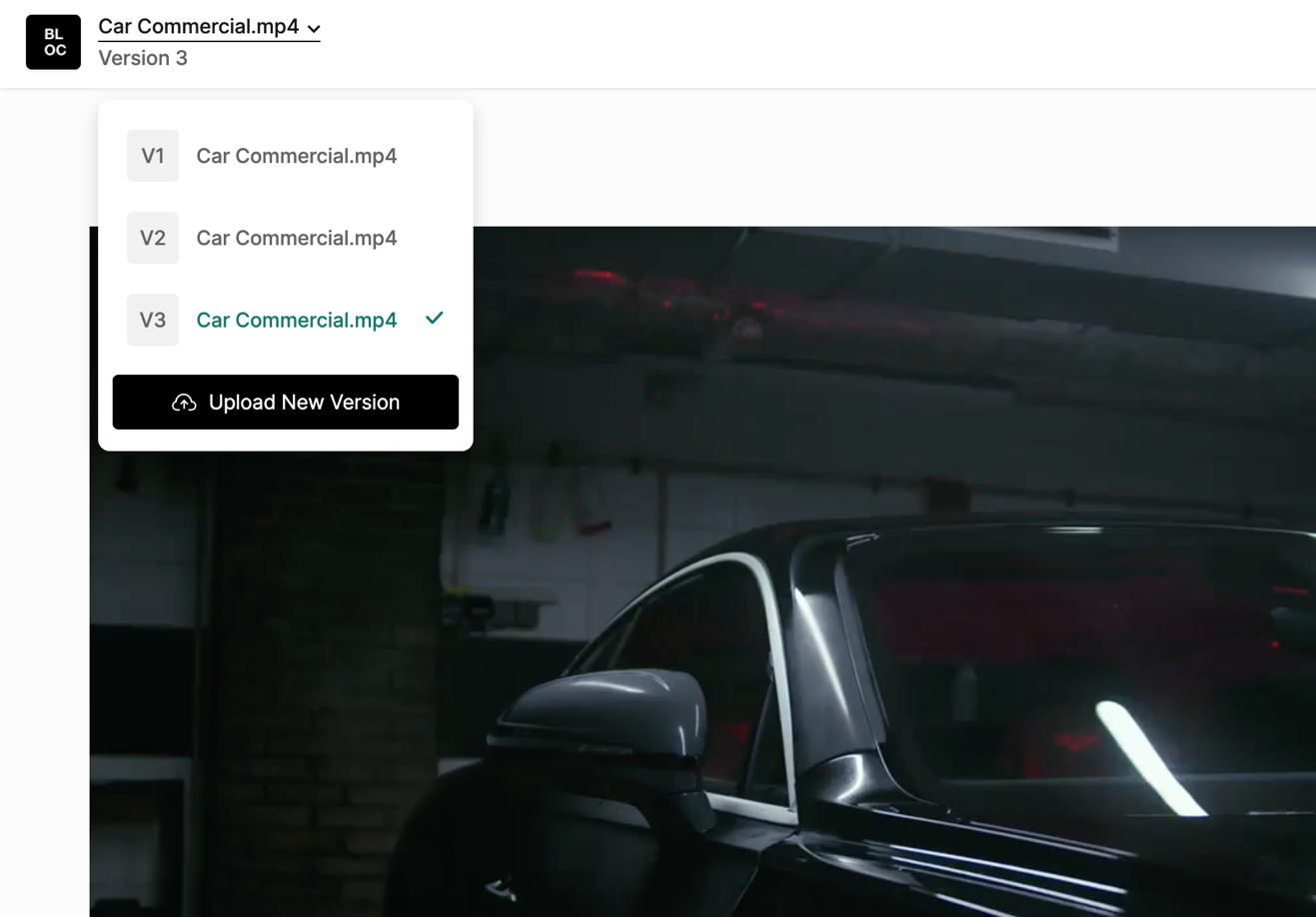
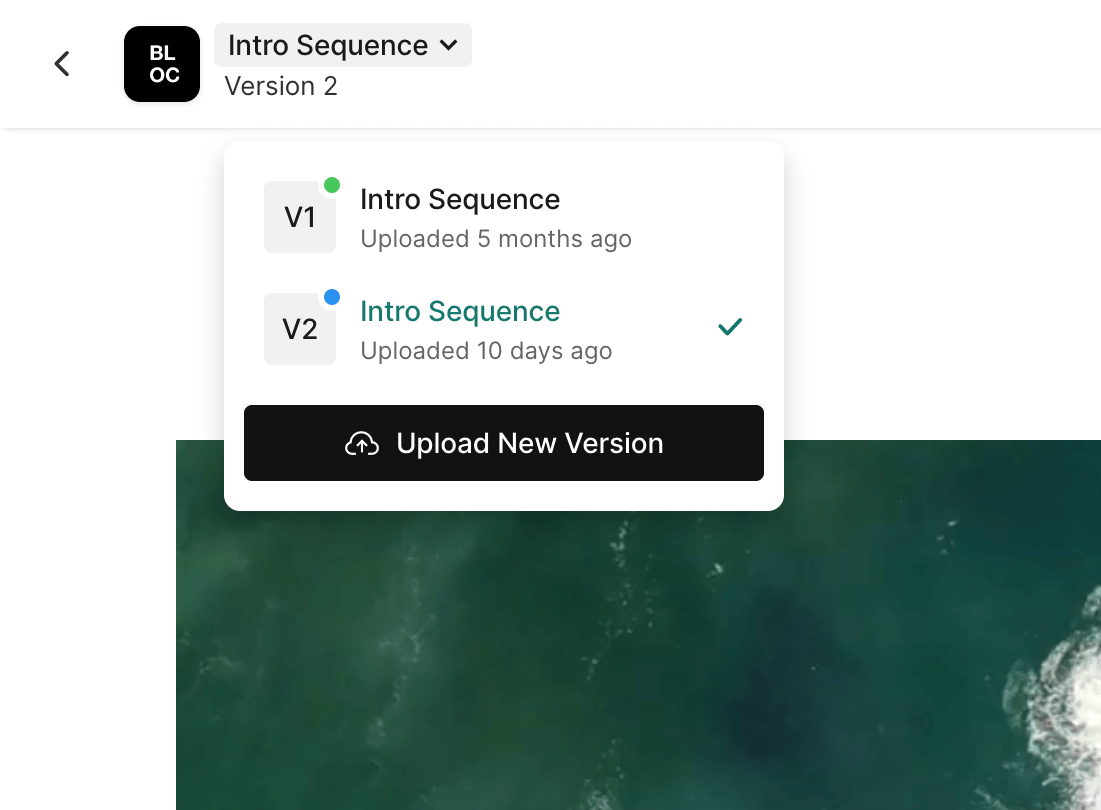
To upload a new version, open the asset you wish to update and click the Title in the upper left corner, then select Upload New Version.
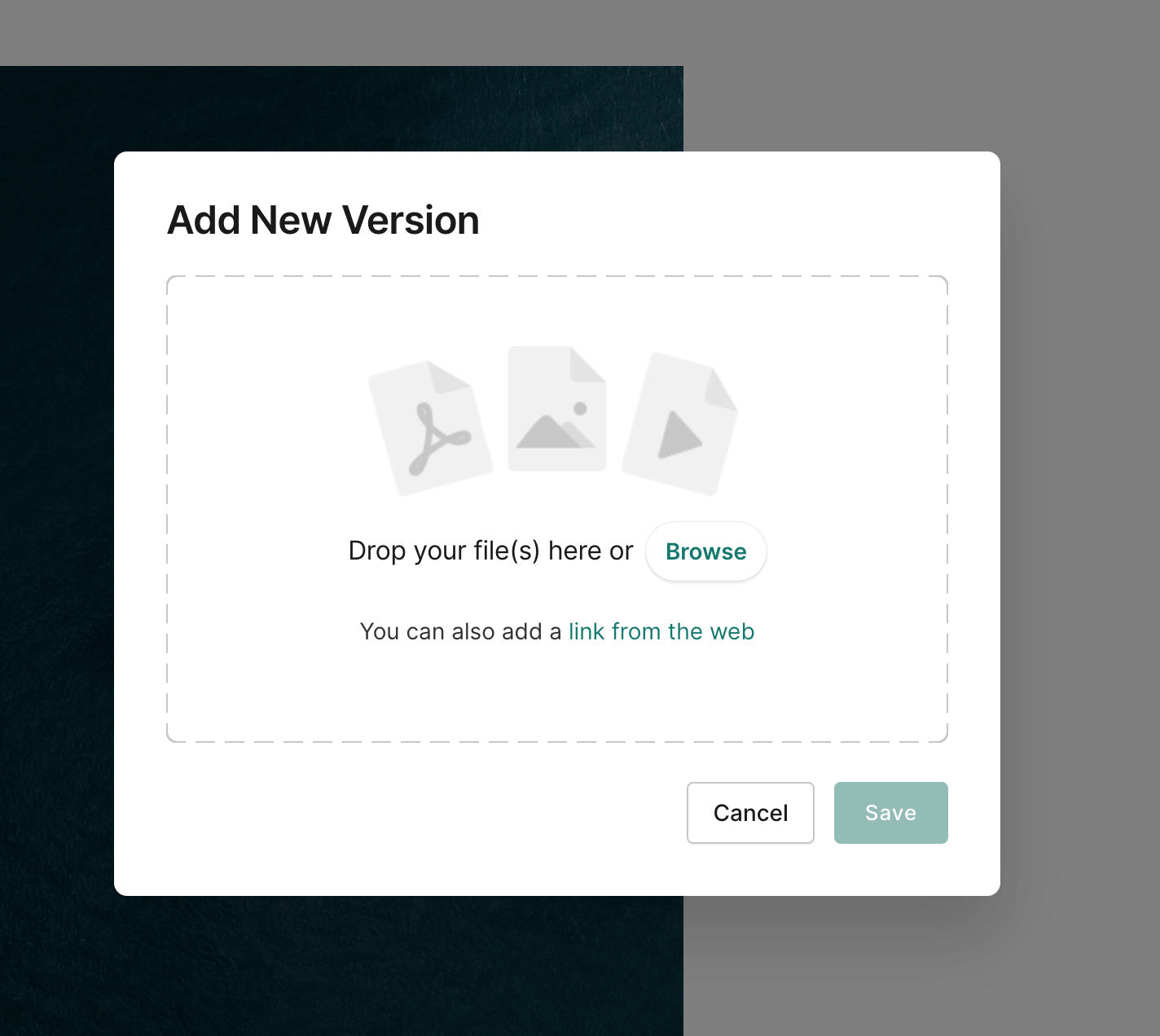
Select a new file from your computer to and click Save once the upload is finished to add the new version.
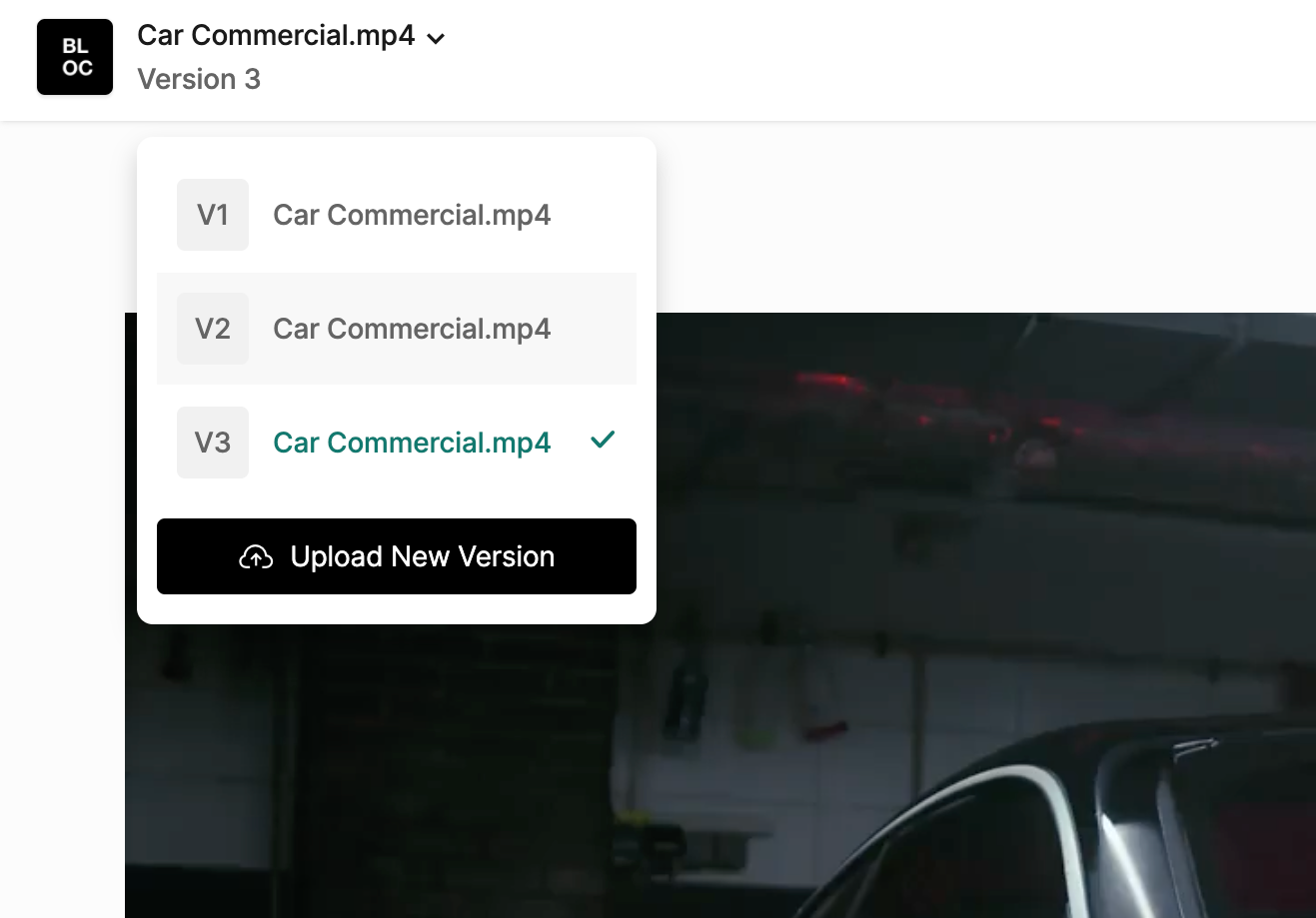
To access old versions of the asset, along with prior feedback, click the Title in the upper left corner and selecting the older version you wish to view.
Change the Status of a Version
Each version of the asset has it's own status, enabling you to change the status of a version independently.
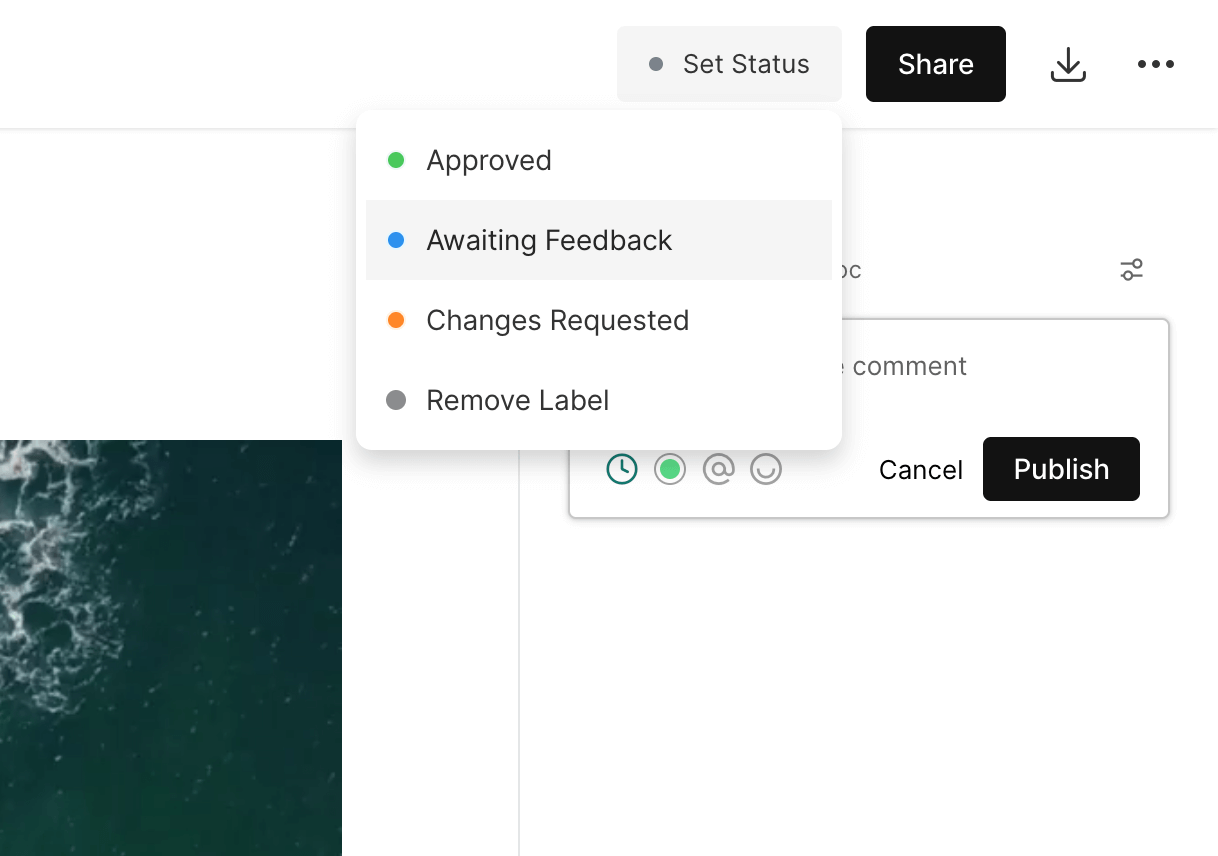
When you open up the version stack, you will see a small colored dot that correlates to the status of each version.
NOTE: Version control is only available for assets and documents, but not for galleries or submissions.
To learn about adding a new version of a document, click here.